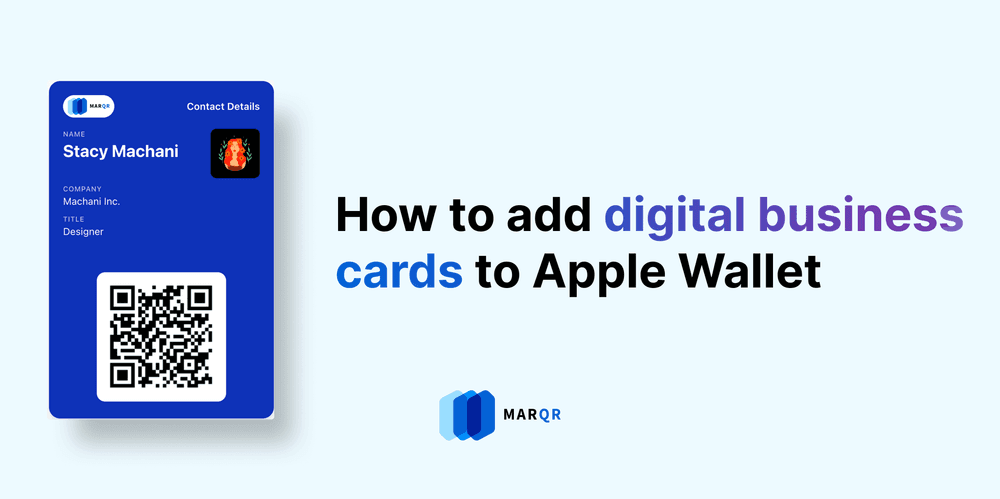
Adding your business card to your Apple wallet is as easy as it gets. You can use the set-up video embedded below or follow the instructions in three simple steps:
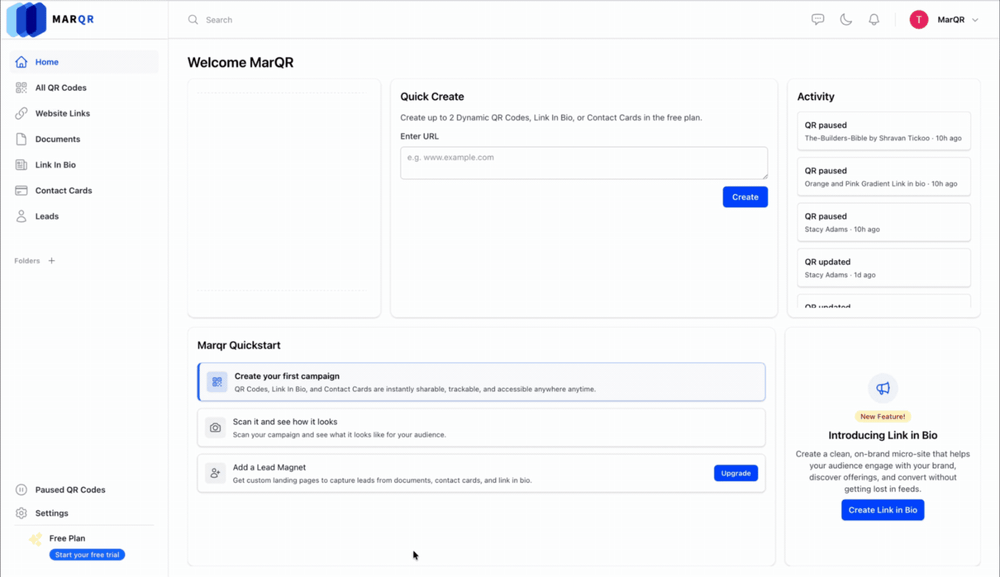
Step #1. Create your Business Card
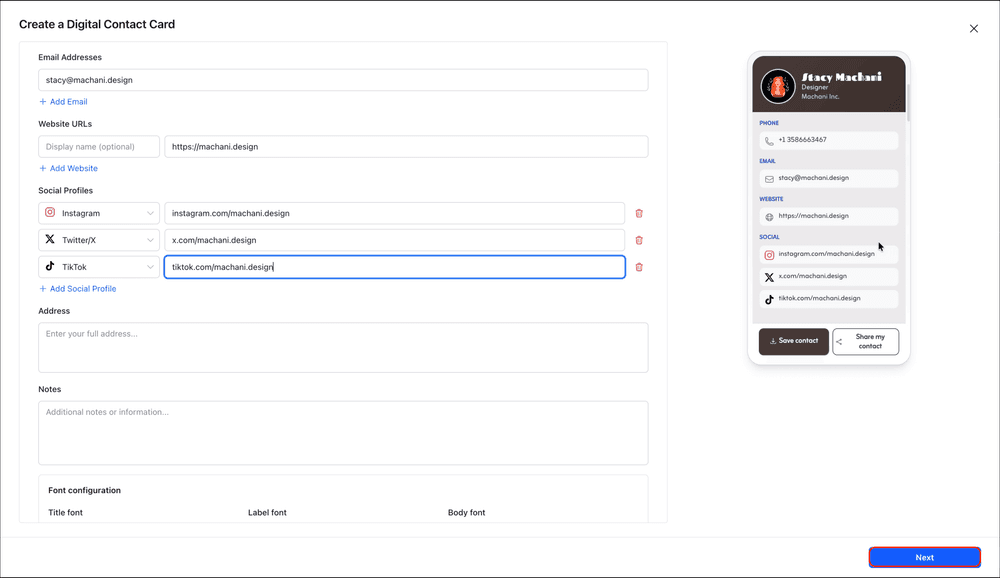
You can create a contact card by signing up for Marqr or signing in to your existing Marqr account and create a contact card. Click ‘Next’ when you’ve customized your contact card to your liking.
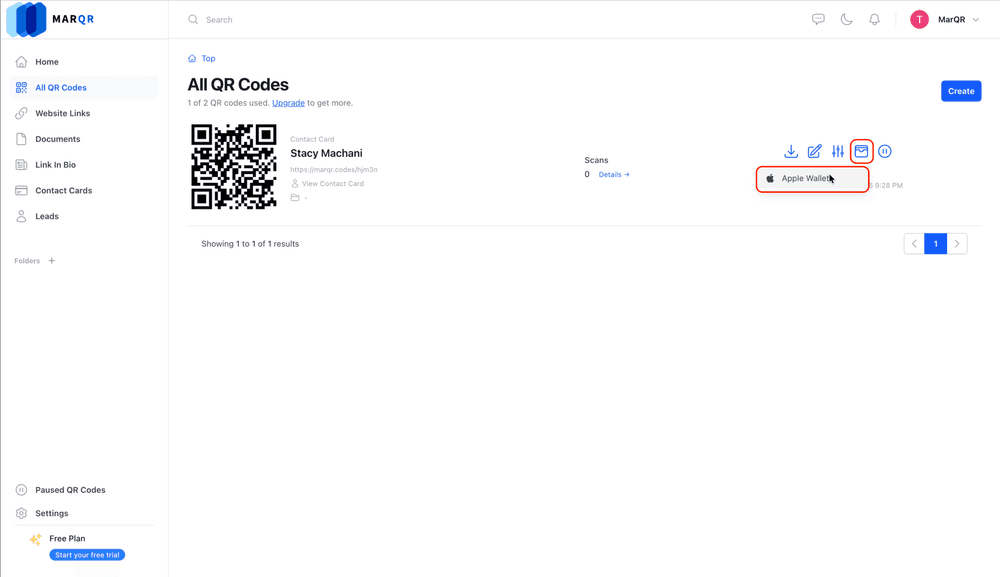
Step #2 Configure your Apple Wallet Pass
Click on the Wallet icon from the Contact Cards home screen and click on the ‘Apple Wallet’.
This will take you to the Apple Wallet Configuration page where you can customize how your wallet pass looks, and what information is displayed on the from and the back side.
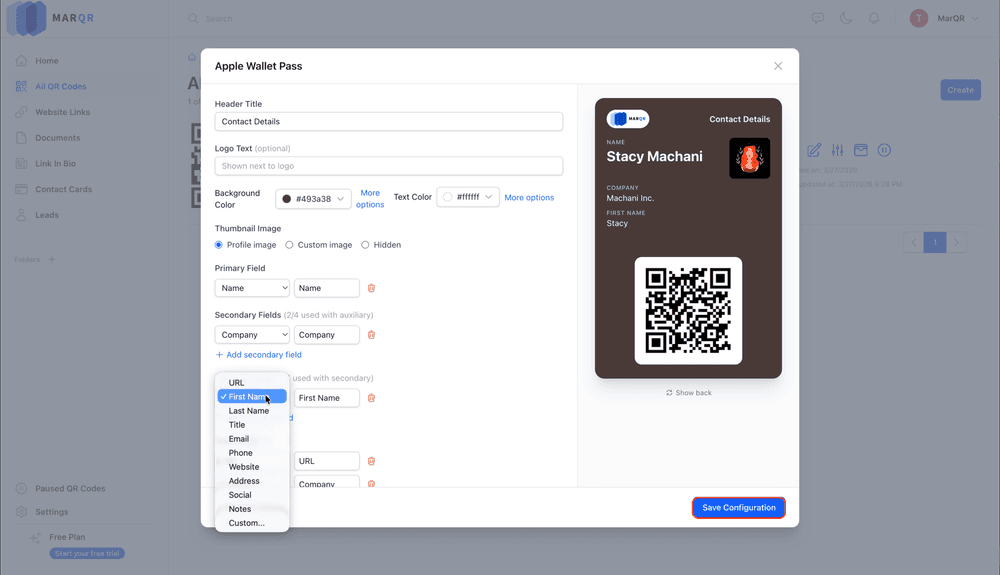
Once you are satisfied with your configuration, click on ‘Save Configuration’
Step #3 Add your Business Card to your Apple Wallet
Once you have saved your wallet configuration, on the same screen the ‘Add to Apple Wallet’ button appears.
Click on it, and you will two options to add the contact card to your apple wallet:
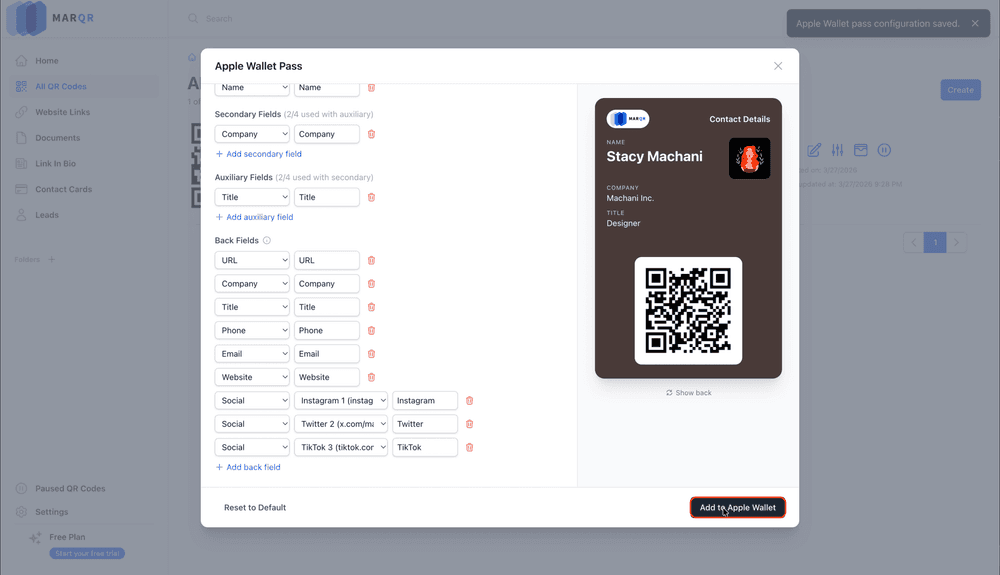
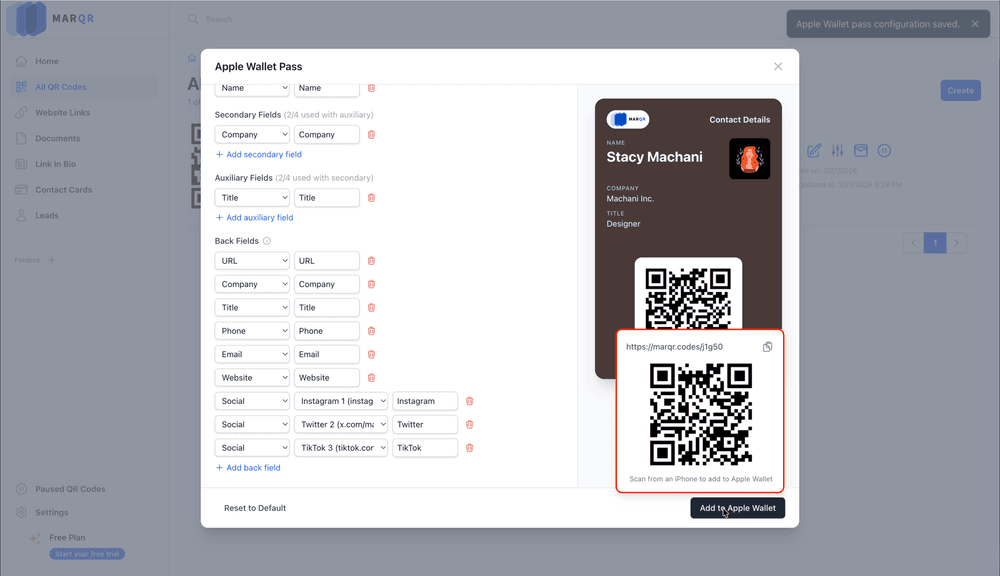
One, is by scanning the QR Code with an Apple iPhone.
The second way is to copy the Wallet Pass link (above the QR Code). You can easily copy it by clicking the pad icon on the top right hand side of the modal, above the QR code.
And voila! You’re done in 3 simple Steps.
Benefits of Adding your Business Card to your Apple Wallet
1. Off-the grid Accessibility:
Adding your business cards to Apple wallet pass is especially helpful when you’re disconnected from the internet or in a location with limited internet access such as conference halls. If you find yourself in such a situation, dont fret! You can still share your contact card with the Apple Wallet Pass on Marqr.
2. Instant sharing:
Simply scan a QR code or tap a link from your wallet to not only add your contact to their digital phone book. So the next time you call them, you can skip the stiff introductions because your contact is already saved on their phone.
Moreover, the recipients can also share their contact details with you through the lead form. This gets captured in the ‘Leads’ tabe on the main navigation bar within the Marqr web application.
3. Real-time Updates:
Whether you need to make changes due to a role upgrade, company change or additions to your portfolio, you only need to update your Contact Card on Marqr, and it’ll instantly update your Apple Wallet Pass without you having to go through the drudgery of creating another QR code or adding another pass to your wallet.
Frequently Asked Questions
What’s a Digital Business Card?
Digital business cards or digital contact cards are a modern, electronic version of paper or physical business cards. The digital business card lives on your phone or in the cloud instead of in your wallet.
It can contain standard contact details plus rich media like videos, social links, and website URLs.
How do I share my card?
You can share your contact card by displaying a QR code, or sending a short link via text, email, or social media, or via the Apple Wallet to your recipients.
Does the recipient need an app?
No, digital business cards open in a standard mobile browser once scanned or tapped, allowing recipients to view and save your details without downloading anything. They can also share their contact details with you on the same link. The details will be captured in the ‘Leads’ tab of your Marqr account.
What should I include on my card?
Beyond the basics (name, title, email, phone), you can include a professional headshot or company logo, LinkedIn profile, and potentially a Call to Action (CTA) to schedule a meeting or visit your portfolio.
How can I create a digital business card?
Log in or sign up into your Marqr account and click on Contact Cards tab from the main navigation bar. Click the 'Create' button to create your digital business card. Add your details and make the necessary changes, and. click on Save.